> ## Documentation Index
> Fetch the complete documentation index at: https://docs.nox.energy/llms.txt
> Use this file to discover all available pages before exploring further.
# New Asset Integration
> Connect an asset you don't manage yourself (e.g. a third-party OEM asset). NOX Energy provides the integration.
Use this path when you don't yet have your own connection to a specific asset type. NOX Energy brokers the connection for you: we redirect the user to our Authenticator UI, where they authenticate directly with the relevant party, and hand you back a mapping to your own user.
Already have your own connection to the asset type? See [Bring Your Own Connection](/guides/bring-your-own-connection) instead.
## Endpoint
Use the following endpoint to connect a user to our platform and link their asset:
[Create supplier link session](/api-docs/supplier-integration/supplier/create-supplier-link-session)
## Authentication flow
**Summary**:
1. **Call our API** → Creates an authentication session; you redirect the user to the `link_url`.
2. **User chooses brand** → NOX Energy opens the brand-specific authentication page.
3. **User authenticates** → The user is redirected to the callback URL you provided to our API.
4. **Done!** → NOX Energy has a `user_id`/`device_id` to `supplier_user_id` mapping and data is available in our API endpoints.
 **Detailed flow**:
You provide the endpoint your internal `user_id` for the end-user, a `redirect_url` where NOX Energy will send the user after the flow, the `asset_type` of the device to connect, and optionally a `language` and `brand` to pre-select the Authenticator UI. This can be your mobile app or website. We use the `user_id` you provide to map the device with our internal nox `user_id` and `device_id`.
### Choosing the device type (`asset_type`)
The required `asset_type` field tells NOX Energy which kind of device the user is connecting. It also determines which manufacturer brands are shown in the Authenticator UI. Supported values:
| `asset_type` | Device category | Examples |
| ------------ | ----------------- | ------------------------- |
| `hp` | Heat pump | daikin, vaillant, nibe, … |
| `pv` | PV solar inverter | sma, solis, huawei, … |
To connect a **PV (solar) device**, set `"asset_type": "pv"`. The user will then only see PV inverter brands. To connect a **heat pump**, set `"asset_type": "hp"`. If you also pass a `brand` in the link-session request, then you will directly go to that brand's connect page instead of first arriving to the brand selector page. This can be useful if you want to have your own style of brand selector within your app. Note that the provided brand must be a valid brand for the chosen `asset_type`. See the [Supported Assets Overview](/supported-assets/supported-assets-overview) for the full list of brands per category.
Example:
```bash theme={null}
curl --request POST \
--url https://auth.nox.energy/v2/supplier/link-sessions \
--header 'Content-Type: application/json' \
--header 'x-api-key: api_key_123' \
--data '{
"user_id": "supplier_user_id_123",
"redirect_url": "https://your-app.com/callback",
"asset_type": "hp",
"language": "en"
}'
```
On a successful response, you will receive a `link_url` field.
```json theme={null}
{
"link_url": "https://auth.nox.energy/ui?token=abc123&language=en",
"link_token": "abc123def456ghi789jkl012mno345pqr678stu901vwx234yz",
"supplier": "Your Supplier Name",
"supplier_user_id": "supplier_user_id_123",
"redirect_url": "https://your-app.com/callback",
"language": "en",
"asset_type": "hp",
"brand": null,
"completed_at": null,
"created_at": 1703123456,
"expires_at": 1703124056
}
```
Redirect the user to this `link_url` from your website or app to start the manufacturer authentication flow.
**Detailed flow**:
You provide the endpoint your internal `user_id` for the end-user, a `redirect_url` where NOX Energy will send the user after the flow, the `asset_type` of the device to connect, and optionally a `language` and `brand` to pre-select the Authenticator UI. This can be your mobile app or website. We use the `user_id` you provide to map the device with our internal nox `user_id` and `device_id`.
### Choosing the device type (`asset_type`)
The required `asset_type` field tells NOX Energy which kind of device the user is connecting. It also determines which manufacturer brands are shown in the Authenticator UI. Supported values:
| `asset_type` | Device category | Examples |
| ------------ | ----------------- | ------------------------- |
| `hp` | Heat pump | daikin, vaillant, nibe, … |
| `pv` | PV solar inverter | sma, solis, huawei, … |
To connect a **PV (solar) device**, set `"asset_type": "pv"`. The user will then only see PV inverter brands. To connect a **heat pump**, set `"asset_type": "hp"`. If you also pass a `brand` in the link-session request, then you will directly go to that brand's connect page instead of first arriving to the brand selector page. This can be useful if you want to have your own style of brand selector within your app. Note that the provided brand must be a valid brand for the chosen `asset_type`. See the [Supported Assets Overview](/supported-assets/supported-assets-overview) for the full list of brands per category.
Example:
```bash theme={null}
curl --request POST \
--url https://auth.nox.energy/v2/supplier/link-sessions \
--header 'Content-Type: application/json' \
--header 'x-api-key: api_key_123' \
--data '{
"user_id": "supplier_user_id_123",
"redirect_url": "https://your-app.com/callback",
"asset_type": "hp",
"language": "en"
}'
```
On a successful response, you will receive a `link_url` field.
```json theme={null}
{
"link_url": "https://auth.nox.energy/ui?token=abc123&language=en",
"link_token": "abc123def456ghi789jkl012mno345pqr678stu901vwx234yz",
"supplier": "Your Supplier Name",
"supplier_user_id": "supplier_user_id_123",
"redirect_url": "https://your-app.com/callback",
"language": "en",
"asset_type": "hp",
"brand": null,
"completed_at": null,
"created_at": 1703123456,
"expires_at": 1703124056
}
```
Redirect the user to this `link_url` from your website or app to start the manufacturer authentication flow.
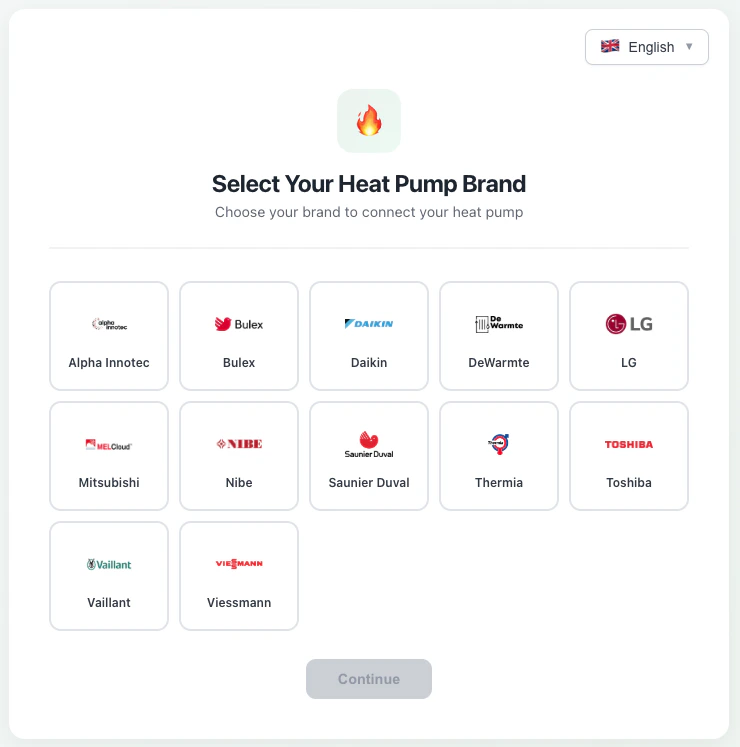 On this page the user selects their manufacturer brand, which opens the manufacturer's OAuth page. The user logs into the manufacturer's portal to grant access to their asset. Depending on the brand, the user also accepts the manufacturer's terms of service during this step.
## Redirect callback
To complete the integration flow, you must provide NOX Energy with a redirect URL (the `redirect_url` field in the request). It must be a valid `http(s)` URL, and any query parameters you include in it are preserved.
When the user finishes the flow they are redirected back to this URL. We always append a `success` query parameter so a single redirect URL can render both outcomes:
* **Success** — `?success=true` plus a `data` query parameter (see below).
* **Failure** — `?success=false`, with no `data` parameter (this includes errors such as the user declining consent on the manufacturer's OAuth screen).
```
https://your-app.com/callback?success=true&data=eyJub3hfdXNlcl9pZCI6Ii4uLiIsIC4uLn0
https://your-app.com/callback?success=false
```
On success the `data` parameter holds a **base64url-encoded** (no padding) JSON payload with the connection details, allowing you to map the NOX user to your system. The decoded JSON object has the following structure:
| Field | Type | Description |
| ------------------ | --------- | --------------------------------------------- |
| `nox_user_id` | string | The NOX subscriber ID. |
| `supplier_user_id` | string | The supplier's user ID from the link session. |
| `brand` | string | Manufacturer brand (lowercase). |
| `asset_type` | string | Device category (e.g. `hp`, `pv`). |
| `device_ids` | string\[] | List of device IDs that were connected. |
| `connected_at` | integer | Unix timestamp when the connection was made. |
Example decoded payload:
```json theme={null}
{
"nox_user_id": "nox_abc123",
"supplier_user_id": "supplier_user_id_123",
"brand": "daikin",
"asset_type": "hp",
"device_ids": ["device_001", "device_002"],
"connected_at": 1703123456
}
```
## Data availability after connecting
Completing the Authenticator flow does not guarantee that device data is immediately available. After the device is connected to NOX Energy, the connection may still need to finalize on the connected device's manufacturer (OEM) side before we are granted the access rights required to export device data to the connecting party.
As a result, the [/devices](/api-docs/full-control/asset-info/get-devices) endpoint may return an empty result right after the user completes the link session.
We advise the connecting party to poll the [/devices](/api-docs/full-control/asset-info/get-devices) endpoint for up to **10 minutes** after the redirect callback, while displaying a pending state to the end user. Once device data is returned, the connection is finalized and you can stop polling. If no device data is returned after 10 minutes, assume something went wrong with the connection.
**Note**:
* A link session expires 10 minutes after creation. If the session times out, the authentication will fail even if the user completes it afterwards.
* If a user authenticates again with the same `supplier_user_id`, we overwrite the linked device with the new one while keeping the `user_id` and `supplier_user_id` the same.
* If the owner of an asset authenticates using two different `supplier_user_id` values, only the last user will exist on our side, as we assume a single user has ownership of a device.
* After a device connects to our system for the first time, we need approximately 30 days of data before we can provide accurate steering capabilities.
## Endpoint
Use the following endpoint to connect a user to our platform and link their asset:
[Create partner link session](/api-docs/partner-integration/partner/create-partner-link-session)
A [manufacturer-specific link session endpoint](/api-docs/manufacturer-integration/manufacturer/create-manufacturer-link-session) exists but will be deprecated in the future.
Looking to link your users to a NOX-integrated **energy supplier** instead? See the [OEM to Supplier Integration (BETA)](/guides/oem-to-supplier-beta) guide.
## Authentication flow
**Summary**:
1. **Call our API** → Creates an authentication session; you redirect the user to the `link_url`.
2. **User chooses brand** → NOX Energy opens the brand-specific authentication page.
3. **User authenticates** → The user is redirected to the callback URL you provided to our API.
4. **Done!** → NOX Energy has a `user_id`/`device_id` to `partner_user_id` mapping and data is available in our API endpoints.
**Detailed flow**:
You provide the endpoint your internal `user_id` for the end-user, a `redirect_url` where NOX Energy will send the user after the flow, the `asset_type` of the device to connect, and optionally a `language` and `brand` to pre-select the Authenticator UI. This can be your mobile app or website. We use the `user_id` you provide to map the device with our internal nox `user_id` and `device_id`.
### Choosing the device type (`asset_type`)
The required `asset_type` field tells NOX Energy which kind of device the user is connecting. It also determines which manufacturer brands are shown in the Authenticator UI. Supported values:
| `asset_type` | Device category | Examples |
| ------------ | ----------------- | ------------------------- |
| `hp` | Heat pump | daikin, vaillant, nibe, … |
| `pv` | PV solar inverter | sma, solis, huawei, … |
To connect a **PV (solar) device**, set `"asset_type": "pv"`. The user will then only see PV inverter brands. To connect a **heat pump**, set `"asset_type": "hp"`. If you also pass a `brand` in the link-session request, then you will directly go to that brand's connect page instead of first arriving to the brand selector page. This can be useful if you want to have your own style of brand selector within your app. Note that the provided brand must be a valid brand for the chosen `asset_type`. See the [Supported Assets Overview](/supported-assets/supported-assets-overview) for the full list of brands per category.
Example:
```bash theme={null}
curl --request POST \
--url https://auth.nox.energy/v2/partner/link-sessions \
--header 'Content-Type: application/json' \
--header 'x-api-key: api_key_123' \
--data '{
"user_id": "partner_user_id_123",
"redirect_url": "https://your-app.com/callback",
"asset_type": "hp",
"language": "en"
}'
```
On a successful response, you will receive a `link_url` field.
```json theme={null}
{
"link_url": "https://auth.nox.energy/ui?token=abc123&language=en",
"link_token": "abc123def456ghi789jkl012mno345pqr678stu901vwx234yz",
"partner": "Your Company Name",
"partner_user_id": "partner_user_id_123",
"redirect_url": "https://your-app.com/callback",
"language": "en",
"asset_type": "hp",
"brand": null,
"completed_at": null,
"created_at": 1703123456,
"expires_at": 1703124056
}
```
Redirect the user to this `link_url` from your website or app to start the manufacturer authentication flow.
On this page the user selects their manufacturer brand, which opens the manufacturer's OAuth page. The user logs into the manufacturer's portal to grant access to their asset. Depending on the brand, the user also accepts the manufacturer's terms of service during this step.
## Redirect callback
To complete the integration flow, you must provide NOX Energy with a redirect URL (the `redirect_url` field in the request). It must be a valid `http(s)` URL, and any query parameters you include in it are preserved.
When the user finishes the flow they are redirected back to this URL. We always append a `success` query parameter so a single redirect URL can render both outcomes:
* **Success** — `?success=true` plus a `data` query parameter (see below).
* **Failure** — `?success=false`, with no `data` parameter (this includes errors such as the user declining consent on the manufacturer's OAuth screen).
```
https://your-app.com/callback?success=true&data=eyJub3hfdXNlcl9pZCI6Ii4uLiIsIC4uLn0
https://your-app.com/callback?success=false
```
On success the `data` parameter holds a **base64url-encoded** (no padding) JSON payload with the connection details, allowing you to map the NOX user to your system. The decoded JSON object has the following structure:
| Field | Type | Description |
| ----------------- | --------- | -------------------------------------------- |
| `nox_user_id` | string | The NOX subscriber ID. |
| `partner_user_id` | string | The partner's user ID from the link session. |
| `brand` | string | Manufacturer brand (lowercase). |
| `asset_type` | string | Device category (e.g. `hp`, `pv`). |
| `device_ids` | string\[] | List of device IDs that were connected. |
| `connected_at` | integer | Unix timestamp when the connection was made. |
Example decoded payload:
```json theme={null}
{
"nox_user_id": "nox_abc123",
"partner_user_id": "partner_user_id_123",
"brand": "daikin",
"asset_type": "hp",
"device_ids": ["device_001", "device_002"],
"connected_at": 1703123456
}
```
## Data availability after connecting
Completing the Authenticator flow does not guarantee that device data is immediately available. After the device is connected to NOX Energy, the connection may still need to finalize on the connected device's manufacturer (OEM) side before we are granted the access rights required to export device data to the connecting party.
As a result, the [/devices](/api-docs/full-control/asset-info/get-devices) endpoint may return an empty result right after the user completes the link session.
We advise the connecting party to poll the [/devices](/api-docs/full-control/asset-info/get-devices) endpoint for up to **10 minutes** after the redirect callback, while displaying a pending state to the end user. Once device data is returned, the connection is finalized and you can stop polling. If no device data is returned after 10 minutes, assume something went wrong with the connection.
**Note**:
* A link session expires 10 minutes after creation. If the session times out, the authentication will fail even if the user completes it afterwards.
* If a user authenticates again with the same `partner_user_id`, we overwrite the linked device with the new one while keeping the `user_id` and `partner_user_id` the same.
* If the owner of an asset authenticates using two different `partner_user_id` values, only the last user will exist on our side, as we assume a single user has ownership of a device.
* After a device connects to our system for the first time, we need approximately 30 days of data before we can provide accurate steering capabilities.
On this page the user selects their manufacturer brand, which opens the manufacturer's OAuth page. The user logs into the manufacturer's portal to grant access to their asset. Depending on the brand, the user also accepts the manufacturer's terms of service during this step.
## Redirect callback
To complete the integration flow, you must provide NOX Energy with a redirect URL (the `redirect_url` field in the request). It must be a valid `http(s)` URL, and any query parameters you include in it are preserved.
When the user finishes the flow they are redirected back to this URL. We always append a `success` query parameter so a single redirect URL can render both outcomes:
* **Success** — `?success=true` plus a `data` query parameter (see below).
* **Failure** — `?success=false`, with no `data` parameter (this includes errors such as the user declining consent on the manufacturer's OAuth screen).
```
https://your-app.com/callback?success=true&data=eyJub3hfdXNlcl9pZCI6Ii4uLiIsIC4uLn0
https://your-app.com/callback?success=false
```
On success the `data` parameter holds a **base64url-encoded** (no padding) JSON payload with the connection details, allowing you to map the NOX user to your system. The decoded JSON object has the following structure:
| Field | Type | Description |
| ------------------ | --------- | --------------------------------------------- |
| `nox_user_id` | string | The NOX subscriber ID. |
| `supplier_user_id` | string | The supplier's user ID from the link session. |
| `brand` | string | Manufacturer brand (lowercase). |
| `asset_type` | string | Device category (e.g. `hp`, `pv`). |
| `device_ids` | string\[] | List of device IDs that were connected. |
| `connected_at` | integer | Unix timestamp when the connection was made. |
Example decoded payload:
```json theme={null}
{
"nox_user_id": "nox_abc123",
"supplier_user_id": "supplier_user_id_123",
"brand": "daikin",
"asset_type": "hp",
"device_ids": ["device_001", "device_002"],
"connected_at": 1703123456
}
```
## Data availability after connecting
Completing the Authenticator flow does not guarantee that device data is immediately available. After the device is connected to NOX Energy, the connection may still need to finalize on the connected device's manufacturer (OEM) side before we are granted the access rights required to export device data to the connecting party.
As a result, the [/devices](/api-docs/full-control/asset-info/get-devices) endpoint may return an empty result right after the user completes the link session.
We advise the connecting party to poll the [/devices](/api-docs/full-control/asset-info/get-devices) endpoint for up to **10 minutes** after the redirect callback, while displaying a pending state to the end user. Once device data is returned, the connection is finalized and you can stop polling. If no device data is returned after 10 minutes, assume something went wrong with the connection.
**Note**:
* A link session expires 10 minutes after creation. If the session times out, the authentication will fail even if the user completes it afterwards.
* If a user authenticates again with the same `supplier_user_id`, we overwrite the linked device with the new one while keeping the `user_id` and `supplier_user_id` the same.
* If the owner of an asset authenticates using two different `supplier_user_id` values, only the last user will exist on our side, as we assume a single user has ownership of a device.
* After a device connects to our system for the first time, we need approximately 30 days of data before we can provide accurate steering capabilities.
## Endpoint
Use the following endpoint to connect a user to our platform and link their asset:
[Create partner link session](/api-docs/partner-integration/partner/create-partner-link-session)
A [manufacturer-specific link session endpoint](/api-docs/manufacturer-integration/manufacturer/create-manufacturer-link-session) exists but will be deprecated in the future.
Looking to link your users to a NOX-integrated **energy supplier** instead? See the [OEM to Supplier Integration (BETA)](/guides/oem-to-supplier-beta) guide.
## Authentication flow
**Summary**:
1. **Call our API** → Creates an authentication session; you redirect the user to the `link_url`.
2. **User chooses brand** → NOX Energy opens the brand-specific authentication page.
3. **User authenticates** → The user is redirected to the callback URL you provided to our API.
4. **Done!** → NOX Energy has a `user_id`/`device_id` to `partner_user_id` mapping and data is available in our API endpoints.
**Detailed flow**:
You provide the endpoint your internal `user_id` for the end-user, a `redirect_url` where NOX Energy will send the user after the flow, the `asset_type` of the device to connect, and optionally a `language` and `brand` to pre-select the Authenticator UI. This can be your mobile app or website. We use the `user_id` you provide to map the device with our internal nox `user_id` and `device_id`.
### Choosing the device type (`asset_type`)
The required `asset_type` field tells NOX Energy which kind of device the user is connecting. It also determines which manufacturer brands are shown in the Authenticator UI. Supported values:
| `asset_type` | Device category | Examples |
| ------------ | ----------------- | ------------------------- |
| `hp` | Heat pump | daikin, vaillant, nibe, … |
| `pv` | PV solar inverter | sma, solis, huawei, … |
To connect a **PV (solar) device**, set `"asset_type": "pv"`. The user will then only see PV inverter brands. To connect a **heat pump**, set `"asset_type": "hp"`. If you also pass a `brand` in the link-session request, then you will directly go to that brand's connect page instead of first arriving to the brand selector page. This can be useful if you want to have your own style of brand selector within your app. Note that the provided brand must be a valid brand for the chosen `asset_type`. See the [Supported Assets Overview](/supported-assets/supported-assets-overview) for the full list of brands per category.
Example:
```bash theme={null}
curl --request POST \
--url https://auth.nox.energy/v2/partner/link-sessions \
--header 'Content-Type: application/json' \
--header 'x-api-key: api_key_123' \
--data '{
"user_id": "partner_user_id_123",
"redirect_url": "https://your-app.com/callback",
"asset_type": "hp",
"language": "en"
}'
```
On a successful response, you will receive a `link_url` field.
```json theme={null}
{
"link_url": "https://auth.nox.energy/ui?token=abc123&language=en",
"link_token": "abc123def456ghi789jkl012mno345pqr678stu901vwx234yz",
"partner": "Your Company Name",
"partner_user_id": "partner_user_id_123",
"redirect_url": "https://your-app.com/callback",
"language": "en",
"asset_type": "hp",
"brand": null,
"completed_at": null,
"created_at": 1703123456,
"expires_at": 1703124056
}
```
Redirect the user to this `link_url` from your website or app to start the manufacturer authentication flow.
On this page the user selects their manufacturer brand, which opens the manufacturer's OAuth page. The user logs into the manufacturer's portal to grant access to their asset. Depending on the brand, the user also accepts the manufacturer's terms of service during this step.
## Redirect callback
To complete the integration flow, you must provide NOX Energy with a redirect URL (the `redirect_url` field in the request). It must be a valid `http(s)` URL, and any query parameters you include in it are preserved.
When the user finishes the flow they are redirected back to this URL. We always append a `success` query parameter so a single redirect URL can render both outcomes:
* **Success** — `?success=true` plus a `data` query parameter (see below).
* **Failure** — `?success=false`, with no `data` parameter (this includes errors such as the user declining consent on the manufacturer's OAuth screen).
```
https://your-app.com/callback?success=true&data=eyJub3hfdXNlcl9pZCI6Ii4uLiIsIC4uLn0
https://your-app.com/callback?success=false
```
On success the `data` parameter holds a **base64url-encoded** (no padding) JSON payload with the connection details, allowing you to map the NOX user to your system. The decoded JSON object has the following structure:
| Field | Type | Description |
| ----------------- | --------- | -------------------------------------------- |
| `nox_user_id` | string | The NOX subscriber ID. |
| `partner_user_id` | string | The partner's user ID from the link session. |
| `brand` | string | Manufacturer brand (lowercase). |
| `asset_type` | string | Device category (e.g. `hp`, `pv`). |
| `device_ids` | string\[] | List of device IDs that were connected. |
| `connected_at` | integer | Unix timestamp when the connection was made. |
Example decoded payload:
```json theme={null}
{
"nox_user_id": "nox_abc123",
"partner_user_id": "partner_user_id_123",
"brand": "daikin",
"asset_type": "hp",
"device_ids": ["device_001", "device_002"],
"connected_at": 1703123456
}
```
## Data availability after connecting
Completing the Authenticator flow does not guarantee that device data is immediately available. After the device is connected to NOX Energy, the connection may still need to finalize on the connected device's manufacturer (OEM) side before we are granted the access rights required to export device data to the connecting party.
As a result, the [/devices](/api-docs/full-control/asset-info/get-devices) endpoint may return an empty result right after the user completes the link session.
We advise the connecting party to poll the [/devices](/api-docs/full-control/asset-info/get-devices) endpoint for up to **10 minutes** after the redirect callback, while displaying a pending state to the end user. Once device data is returned, the connection is finalized and you can stop polling. If no device data is returned after 10 minutes, assume something went wrong with the connection.
**Note**:
* A link session expires 10 minutes after creation. If the session times out, the authentication will fail even if the user completes it afterwards.
* If a user authenticates again with the same `partner_user_id`, we overwrite the linked device with the new one while keeping the `user_id` and `partner_user_id` the same.
* If the owner of an asset authenticates using two different `partner_user_id` values, only the last user will exist on our side, as we assume a single user has ownership of a device.
* After a device connects to our system for the first time, we need approximately 30 days of data before we can provide accurate steering capabilities.